Ever stared at your computer screen, desperately clicking while nothing happens, and wondered what mysterious force controls this expensive paperweight? That’s your operating system having a moment.
Your computer’s operating system is basically its brain—the software that manages everything from processing your Netflix binge requests to remembering where you saved that important document you now can’t find.
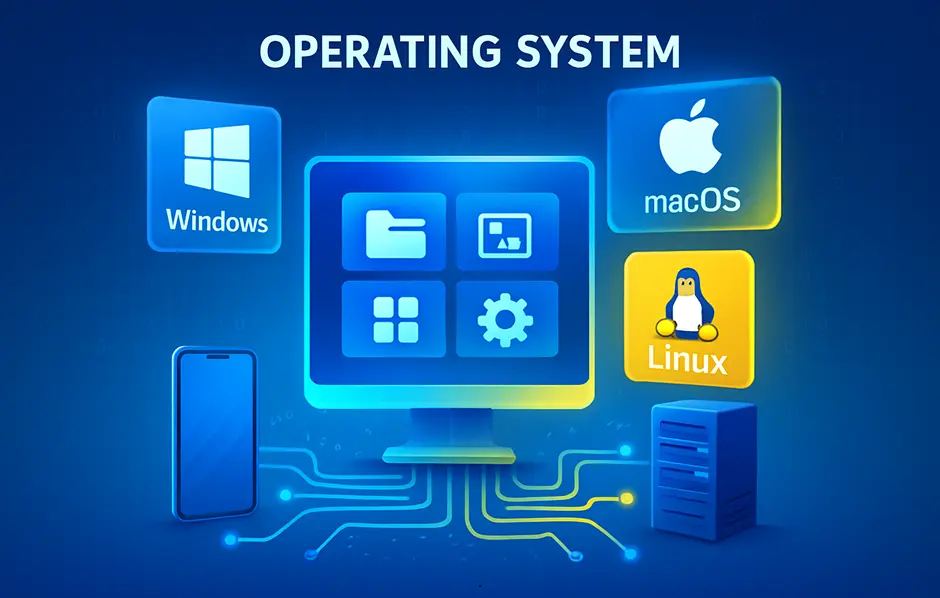
Without an operating system like Windows, macOS, or Linux running the show behind the scenes, your computer would just be a collection of expensive parts with no idea how to talk to each other.
So what actually happens when you hit that power button? And why does your friend’s computer seem faster despite having identical hardware?
The answers might surprise you—and save you from buying an unnecessary upgrade.
Defining Operating Systems: The Digital Brain of Your Computer
What Makes an OS Essential for Computing
Think about trying to drive a car without a steering wheel or pedals. Impossible, right? That’s your computer without an operating system.
The OS is the invisible force that transforms your laptop from an expensive paperweight into a functional machine. Without it, your hardware is just a collection of silicon and metal with no way to actually do anything useful.
Every tap on your keyboard, every click of your mouse, every app you open – none of this happens by magic. Your OS is the middleman handling all these requests, making sure your computer understands what you want it to do.
Core Functions That Power Your Digital Experience
Your OS juggles four main jobs behind the scenes:
- Resource management: Dividing your computer’s attention between multiple apps without crashing
- Memory handling: Deciding what gets stored where, like a hyper-efficient filing clerk
- Device control: Talking to your printer, webcam, and other peripherals so you don’t have to
- Security: Standing guard against malware and keeping your private stuff private
When your computer boots up, the OS takes the wheel, loading critical services and preparing the environment where your apps will run.
How OSes Create a User-Friendly Interface
Remember MS-DOS with its black screen and cryptic commands? Nobody misses those days.
Modern operating systems give us graphical interfaces where we can point, click, and drag instead of memorizing commands. They hide the scary technical stuff and present computing in a way that makes sense to humans.
Your desktop, start menu, taskbar – these familiar elements are design choices that make complex computing tasks accessible to everyone from tech novices to power users.
Types of Operating Systems You Encounter Daily
The OS landscape has several major players:
- Windows: Microsoft’s familiar face, powering roughly 75% of desktop computers
- macOS: Apple’s sleek system known for design and creative applications
- Linux: The customizable open-source option beloved by developers and tinkerers
- Android/iOS: Mobile operating systems that bring computing power to our pockets
Beyond these consumer-facing systems, specialized OSes run everything from ATMs to airplane entertainment systems to smart refrigerators. They’re everywhere, quietly making our digital world work.
The Architecture Behind Operating Systems
Kernel: The Powerful Core That Controls Everything
Ever wonder what’s really running the show when you tap that power button? It’s the kernel—the boss of your operating system.
Think of the kernel as the ultimate middleman. It’s sitting right between your physical hardware (processor, memory, devices) and all your software applications. Without it, your fancy photo editing app wouldn’t know how to talk to your processor or access your RAM.
The kernel handles the tough stuff so you don’t have to:
- Memory management (making sure apps don’t steal each other’s RAM)
- Process scheduling (deciding which apps get processor time)
- Device communication (helping your printer actually print)
- Security enforcement (keeping the bad guys out)
It’s always running, always vigilant, always first to load when you boot up.
Shell: Your Gateway to Communicating with the Machine
The shell is your translator when talking to your computer. Not comfortable speaking binary? No problem—the shell has you covered.
You’ve definitely used a shell before, whether you realize it or not. That command prompt in Windows? Shell. Terminal in Mac? Shell. Every time you click on a folder or drag a file, you’re using a graphical shell.
Shells come in two main flavors:
- Command-Line Interface (CLI): Text-based, powerful, loved by developers
- Graphical User Interface (GUI): Visual, intuitive, what most people use daily
Behind the scenes, every action you take through the shell gets translated into instructions the kernel can understand. It’s like having a personal interpreter for computer-speak.
File Systems: How Your Data Stays Organized
Your computer would be chaos without a file system. Imagine a library with no shelves, no categories, no organization—just books thrown everywhere. Nightmare, right?
File systems bring order to the digital chaos. They track:
- Where each file is physically stored on your drive
- What it’s named and when it was created
- Who’s allowed to read, modify, or delete it
- How it relates to other files
Different operating systems prefer different file systems. Windows loves NTFS, Mac OS is all about APFS, and Linux plays well with ext4. Each has its own way of organizing your digital stuff, but they all serve the same purpose: making sure you can find that important document you saved three months ago.
Key Components That Drive Your Computing Experience
Process Management: Juggling Multiple Tasks Efficiently
Your computer handles dozens of tasks at once without breaking a sweat. That’s process management in action.
Think about it – you’re streaming music, typing a document, and checking email all at the same time. Behind the scenes, your OS is scheduling these processes, giving each one its fair share of CPU time.
The magic happens through multitasking. Modern operating systems don’t actually run everything simultaneously – they switch between tasks so quickly that it feels seamless to you. This juggling act ensures your music doesn’t stutter while you’re editing photos.
When things go wrong (like when an app freezes), the OS steps in to handle the crisis. It can terminate the problematic process without bringing down your entire system.
Memory Management: Maximizing Your Computer’s Resources
RAM is your computer’s short-term memory, and your OS is the memory manager making sure it’s used wisely.
Your operating system performs some impressive feats here:
- It tracks every byte of memory: what’s used, what’s free
- It allocates memory when programs request it
- It reclaims memory when programs are closed
- It swaps data between RAM and storage when memory runs low
Virtual memory is the secret sauce that lets you run more programs than your physical RAM could handle alone. The OS creates this illusion by temporarily moving less-used data to your hard drive.
Device Management: Coordinating All Your Hardware
Every piece of hardware in your computer needs direction. Your OS is the conductor of this complex orchestra.
When you plug in a new printer, your OS recognizes it and loads the appropriate drivers. When you click your mouse, the OS translates that movement into action on screen. When you save a file, the OS coordinates with your storage device.
Device drivers are the translators that let your OS communicate with hardware. They convert general commands (“print this document”) into the specific instructions your particular printer understands.
File Management: Keeping Your Digital Life Organized
Without your OS, files would be a chaotic mess of ones and zeros. The file system creates order from this potential chaos.
Your OS handles:
- Organizing files in a hierarchical structure (folders within folders)
- Naming conventions and file extensions
- Creating, reading, updating, and deleting files
- File permissions and access controls
- Search capabilities to find what you need
Those intuitive file operations you take for granted – dragging files between folders, renaming them, or quickly searching – all come from your OS’s file management system.
Security Features: Protecting Your Digital Assets
Your OS is your first line of defense against digital threats.
Modern operating systems include:
- User authentication (passwords, biometrics)
- Permission systems controlling who can access what
- Encryption options to protect sensitive data
- Automatic updates to patch security vulnerabilities
- Firewalls to monitor network traffic
- Malware detection and prevention
Those security popups asking for permission before an app makes changes? That’s your OS watching your back, making sure nothing happens without your approval.
Popular Operating Systems Compared
Windows: The Mainstream Powerhouse
Windows dominates the PC market for good reason. With over 75% market share, it runs on everything from $200 laptops to high-end gaming rigs.
What makes Windows stick around? Compatibility. Nearly every program on earth works with it. That game from 2005? It’ll probably run. That obscure business software? Windows has you covered.
Microsoft has evolved from the clunky Windows 95 days to Windows 11’s sleek interface. The Start Menu, taskbar, and file explorer are instantly recognizable to most computer users worldwide.
For businesses, Windows remains the default choice. Active Directory makes managing hundreds of computers surprisingly manageable, and Microsoft’s enterprise support gives IT departments peace of mind.
macOS: Apple’s Seamless Ecosystem
Mac users rarely switch back to Windows, and there’s a reason. Apple’s walled garden approach creates a system where everything just works together.
Your iPhone photos appear on your Mac. Your texts show up on your computer screen. Your iPad becomes a second monitor with literally two clicks. This ecosystem lock-in is both macOS’s biggest strength and criticism.
The interface is clean, consistent, and rarely changes dramatically. Apple prioritizes design coherence over feature bloat, making macOS feel more polished than alternatives.
Creative professionals flock to macOS for its color accuracy and specialized software. Final Cut Pro, Logic Pro, and the Adobe suite run beautifully on Apple’s hardware.
Linux: Open-Source Flexibility and Control
Linux isn’t just for bearded programmers anymore. Distributions like Ubuntu and Mint offer Windows-like experiences that normal humans can actually use.
The main draw? Freedom. Don’t like how something works? Change it. Want to breathe life into an ancient laptop? Linux runs on practically anything with a processor.
Security is another Linux strongpoint. Malware barely exists for most distributions, and the open-source nature means thousands of eyes check the code for vulnerabilities.
Server administrators particularly love Linux. Most websites you visit run on Linux servers because of its stability and efficiency. A properly configured Linux server can run for years without rebooting.
Mobile OS: Android vs iOS Battle for Your Pocket
The smartphone OS battle is essentially a two-player game: Android controls about 72% of the global market, while iOS takes most of the remainder.
Android offers variety that Apple can’t match. Want a folding phone? Android. Need a $100 smartphone? Android. Prefer customizing every aspect of your experience? Android again.
iOS counters with consistency and privacy. Every iPhone gets day-one updates for years. Apps generally look better on iOS, and Apple’s privacy controls run circles around Google’s approach.
The ecosystem factor matters here too. Android works well with various platforms, while iOS shines brightest when paired with other Apple products.
How Operating Systems Actually Work
The Boot Process: From Power Button to Desktop
Ever pressed your power button and wondered what magic happens before you see your desktop? There’s actually a fascinating sequence of events happening in those 30-60 seconds.
When you hit that power button, your computer’s motherboard sends electricity to all components. Then the CPU wakes up and looks for instructions in the BIOS or UEFI (think of it as your computer’s most basic brain).
This firmware runs a POST (Power-On Self Test) checking if your hardware is working properly. If everything passes, it hunts for a bootable device – usually your hard drive or SSD.
Next comes the bootloader – a tiny program that kicks off your actual operating system. For Windows, that’s the Windows Boot Manager; for Mac, it’s the macOS boot.efi file.
The bootloader passes control to the kernel – the core of your OS. The kernel loads drivers for your hardware, initializes your file systems, and starts critical background services.
Finally, the OS loads your user interface – the login screen appears, you enter your password, and boom – your desktop materializes with all your icons and wallpaper.
All this happens in under a minute on modern machines. Pretty impressive, right?
Background Processes You Never See But Always Need
Your operating system is like an iceberg – what you see is just a tiny fraction of what’s actually running.
Behind your sleek interface, dozens of essential processes keep everything humming. Services, daemons, and system tasks all work silently in the background.
Take process schedulers – they’re constantly deciding which programs get CPU time and when. Without them, your computer would try running everything simultaneously and crash spectacularly.
Memory management processes are working overtime too. They’re allocating RAM to applications that need it, freeing up space when programs close, and using virtual memory when physical RAM runs short.
File system services maintain your data’s organization. They track where every single file is stored, manage permissions, and handle read/write operations whenever you open or save files.
Network services maintain your internet connections, handle security protocols, and manage data transfers. Every webpage you load or email you send involves these invisible helpers.
System monitors watch for problems – tracking temperature, detecting unusual behavior, and maintaining logs of everything happening on your machine.
These background processes aren’t optional extras – they’re the backbone of your computing experience. Without them, your beautiful interface would be useless.
How Applications Interact with Your OS
Applications don’t talk directly to your hardware – they’d never get anything done if they had to figure out every printer model or graphics card themselves.
Instead, they communicate through your OS using APIs (Application Programming Interfaces) – basically preset commands that tell the OS what they need.
When you click “Save” in a document, your word processor doesn’t need to understand hard drive mechanics. It simply calls the OS’s file handling API saying “I need to save this data.” The OS handles all the complicated stuff like finding free disk space and writing the actual bits.
This relationship works through system calls – formal requests from applications to the kernel for resources or actions. These calls follow strict protocols to prevent apps from interfering with each other.
The OS also provides frameworks that help developers create applications more easily. Think DirectX for games or Cocoa for Mac apps – these are toolkits that simplify complex interactions.
This layered approach keeps things secure and stable. Applications run in “user mode” with limited permissions, while the OS kernel runs in privileged “kernel mode” with direct hardware access.
It’s like having a bouncer between your apps and your hardware – nothing gets through without proper authorization.
Resource Allocation: Ensuring Everything Runs Smoothly
Your operating system is basically a referee in a never-ending competition for resources.
Every program wants more – more CPU time, more memory, more disk space, more network bandwidth. Without proper management, greedy applications would hog everything and crash your system.
CPU scheduling is particularly crucial. Your OS uses sophisticated algorithms to slice processor time into tiny increments, giving each process its fair share while prioritizing important tasks. That’s how your music keeps playing smoothly while you’re editing photos.
Memory management is equally vital. Your OS tracks every byte of RAM, allocating chunks to applications and reclaiming it when no longer needed. When physical memory runs low, it uses virtual memory – essentially borrowing space from your hard drive as temporary RAM.
I/O operations (like reading from your disk or sending data to your printer) need careful handling too. The OS maintains queues and buffers to ensure efficient access to these slower resources without making everything else wait.
Network bandwidth gets similar treatment. Your OS prioritizes different types of traffic – your video call gets priority over background downloads.
The real magic is how your OS balances all these competing demands in real-time, constantly adjusting priorities based on what you’re doing. This invisible juggling act is what lets you run dozens of applications simultaneously without thinking about resource management at all.
Your computer’s operating system is truly the unsung hero of your digital experience. Acting as the vital bridge between hardware and software, it manages everything from memory allocation to file storage while providing the interface through which you interact with your device. Whether you prefer Windows, macOS, Linux, or mobile options like Android or iOS, each operating system brings its own unique approach to organizing the computing environment.
Understanding how your operating system functions isn’t just technical knowledge—it’s practical wisdom that can help you make better technology choices and troubleshoot issues more effectively. Next time you turn on your device, take a moment to appreciate the sophisticated digital brain working behind the scenes, coordinating countless processes to deliver the seamless computing experience you rely on every day.